Windows
NSIS installer for Windows 10 and 11, 64-bit. Unsigned build: SmartScreen will show a warning — this is expected.
Three files: a Windows installer, an AppImage or deb for Linux and an APK for Android. This version is unsigned and has no auto-update — to upgrade, download the new file manually.
NSIS installer for Windows 10 and 11, 64-bit. Unsigned build: SmartScreen will show a warning — this is expected.
AppImage or deb for distributions with X11. Wayland is not supported: typing into other windows is restricted there.
APK for Android 9 and newer. Installed manually (sideload): allow installation from unknown sources for your file manager.
SHA-256 for every file is published on the release page. All files and checksums →
The installer is not signed with a code-signing certificate, so SmartScreen will show the “Windows protected your PC” warning. This is expected for a beta build. Download the file only from the official release page and verify SHA-256.
ScanBridge-Setup-0.1.1.exe.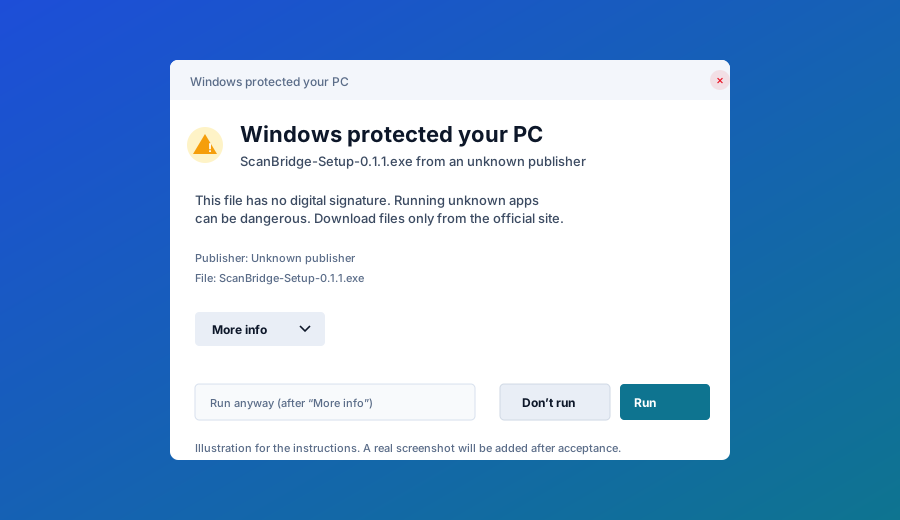
Get-FileHash .\ScanBridge-Setup-0.1.1.exe -Algorithm SHA256.X11 is supported. Check your session with echo $XDG_SESSION_TYPE: it must bex11. On Wayland, typing into other windows does not work and is explicitly disabled.
chmod +x ScanBridge-0.1.1-x86_64.AppImage
./ScanBridge-0.1.1-x86_64.AppImagesudo apt install ./ScanBridge-0.1.1-amd64.deb
scanbridgeIf the app is started from a terminal, the log explains why keyboard emulation is unavailable (for example, DISPLAY is not set).
The APK is distributed manually (sideload), not through Google Play. Android will ask to allow installation from unknown sources for the app you open the file from.
ScanBridge-0.1.1-android.apk.The APK is signed with the Android debug key so it can be installed. Publishing on Google Play requires a separate release key and AAB — that is the next stage.
SHA-256 is published next to every file on the release page. Compare it with the local hash:
sha256sum ScanBridge-0.1.1-x86_64.AppImage
certutil -hashfile ScanBridge-Setup-0.1.1.exe SHA256
Open the release page and checksums →
Still stuck? Contact vaskodegamo01@gmail.com with your OS version, phone model and exact steps.
Current beta limitations: Android only, Windows/Linux X11 only, no cloud, no COM port, no TLS, unsigned builds. See the limitations section.